
Quick answer: Move a small, representative sample first. Verify identity, ownership, next actions and relationships before importing the full spreadsheet. A completed upload does not prove that the resulting records are usable.
- Free CRM migration worksheet
- Define what is actually moving
- Build a field map before touching Import
- Resolve identity before merging
- Run a pilot designed to find trouble
- Reconcile decisions, not only row totals
- Cut over with a clear freeze and catch-up rule
- Map stage evidence, not labels
- The acceptance record
- Useful detail: Name the object beside every imported Record ID
- Sources and review date
Free CRM migration worksheet
Map fields, test difficult records and record the proceed-or-hold decision before cutover. This worksheet is for planning and reconciliation; it is not a CRM import file.
Download the free CRM worksheet pack (ZIP)
No signup. Three editable plain-text worksheets. Unzip the pack and open 02-crm-migration-worksheet.txt in any text editor, or copy it into your shared document. Includes a blank record, fictional example and review checks. Version 1.0 · September 30, 2026.
Jump to: Practical table · Checklist / record
For: small service teams moving contacts and open opportunities into a CRM. The checklist is vendor-neutral; HubSpot documentation is used for specific import cautions. This is a suggested method, not a report of a completed customer migration.
Check before moving on: Stop the full import if identity, overwrites or customer notifications behave unexpectedly.

Define what is actually moving
A spreadsheet row may combine a person, company, possible job and next action. Map each to the corresponding CRM record or relationship. If the new system cannot preserve one part, record where the team will find it after cutover.
Start with active work and the history needed to serve it. Agree what will remain in a read-only archive, how long authorised users need access and who can resolve questions. Do not move obsolete data merely because the import tool accepts it. Equally, do not destroy records to make the project smaller.
Name one import-file owner and save an untouched, dated source export. Put corrections in a controlled working copy. This lets reviewers distinguish an original value from a later edit.
Build a field map before touching Import
On a small screen, swipe the table sideways to see all columns.
| Spreadsheet field | Target and rule | Acceptance check |
|---|---|---|
| Customer name | Contact name; preserve the original where ambiguous | Names remain readable; no invented split. |
| Email or source ID | Identity matching rule agreed before import | Known existing person is updated, not duplicated. |
| Company | Separate company and approved relationship | Contact is linked to the right organisation. |
| Assigned to | Named active CRM owner | No open enquiry lands with an unavailable user. |
| Status | Explicit mapping into agreed stages | Every source value has a destination or exception. |
| Next action and due date | Task or supported operational field | Operator can find overdue work in a normal view. |
| Notes and files | Supported import or linked archive | Sample context and attachments remain accessible. |
Record both the mapping and the exception policy. “Unknown” should not silently become “Qualified”. If an owner has left, assign the record to a named reviewer rather than guessing who should inherit it. Preserve source identifiers in an appropriate field so a record can be traced back without putting secrets into notes.
Resolve identity before merging
Do not deduplicate on names alone. Two people can share a name; one person can have more than one address. A shared office inbox may represent several people. Put ambiguous cases into a review queue and decide whether the CRM should hold one shared contact or separate people using appropriate identifiers.
HubSpot’s documentation describes how email addresses help identify duplicate contacts and how Record IDs identify records during imports.
Check two things before importing:
- Matching: an import without suitable identifiers can create new records.
- Overwrites: some combinations of a secondary email address and Record ID can change the primary address.
Use the rules for your exact import method. An automated connection using an API may behave differently from a file import. For ambiguous pairs, use our CRM duplicate cleanup guide to decide what to merge, keep separate or hold.
Separate new records from updates where practical. For updates, retain an export of the existing values you may overwrite. A list of newly created records is useful, but it cannot by itself restore an existing phone number or owner that an import changed.
Run a pilot designed to find trouble
Start with ten cases that represent the data you actually use. A suggested sample is:
- A new contact.
- An existing contact.
- A possible duplicate.
- A shared inbox.
- A contact linked to a company.
- A missing optional value.
- A record with a date to verify.
- A non-English name.
- An open task.
- A record with an attachment.
Choose cases by risk, not row order. Include an ordinary record, a duplicate candidate, a missing owner, an open deal and any unusual relationship your team relies on.
Use an authorised sandbox or clearly controlled test scope where available. Before importing into production, check whether record creation can trigger email, assignments, workflows or billing consequences. Prevent unintended customer contact through the product’s supported settings and an approved test plan.
For every pilot case, open the resulting record. Check the displayed fields, owner, history and relationships. Ask the person who will use the CRM to find the next action without your instructions. Review rejected rows and warnings; do not rename a rejected row “optional” just to get a clean progress bar.
Reconcile decisions, not only row totals
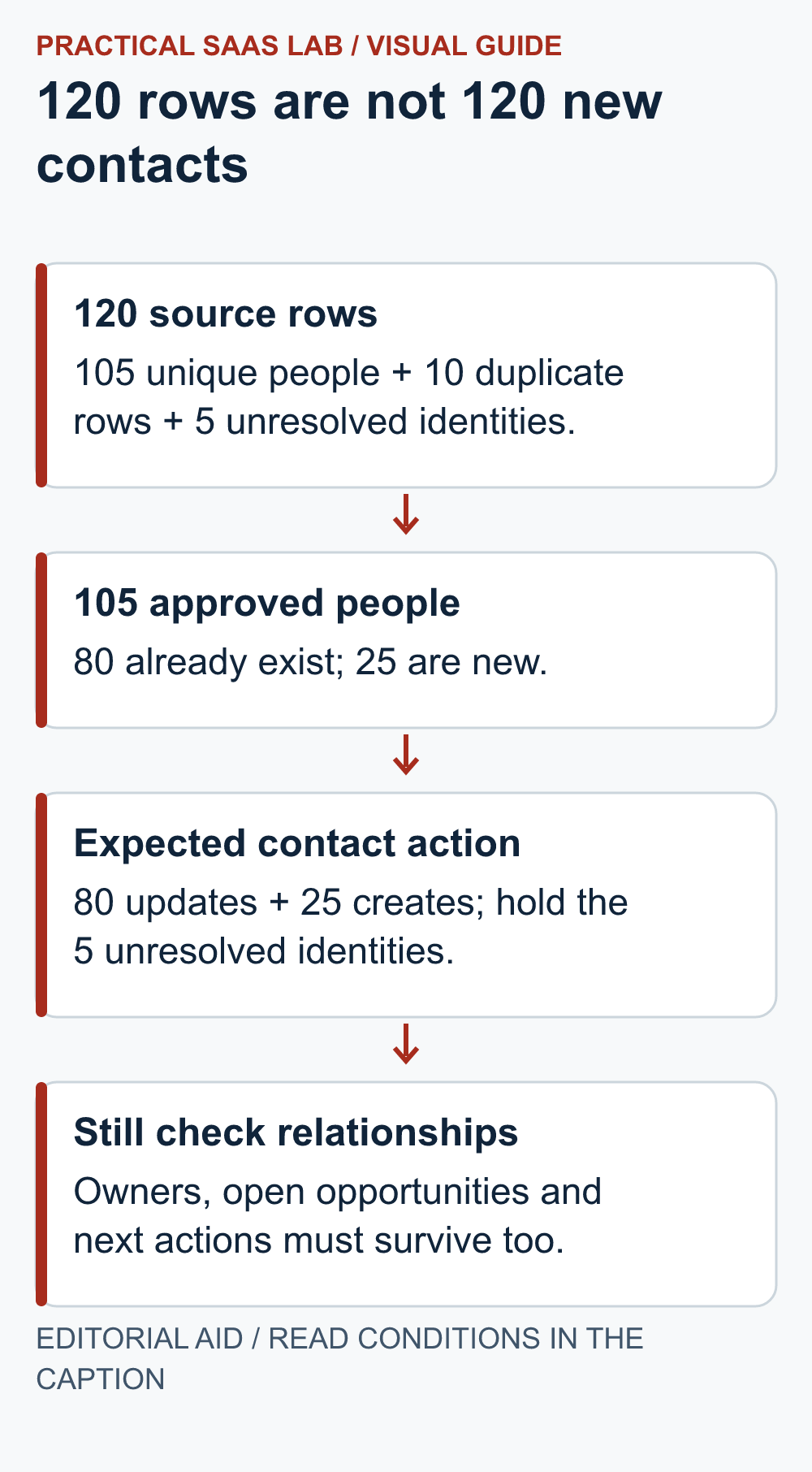
Illustrative reconciliation: work through the 120-row source in three steps.
- Classify the rows: 105 unique people + 10 confirmed duplicate rows + 5 unresolved identities = 120 source rows.
- Match the approved people: 80 of the 105 already exist in the CRM; 105 − 80 = 25 are new.
- Set the expected result: 80 updates, 25 new contacts, and 5 unresolved identities held for review. Do not create the 10 confirmed duplicate rows again.
That calculation does not imply 120 successful imports, and contact totals do not reconcile companies, deals or tasks. Maintain a separate expected-result count for each object. Match the source IDs to destination records and list missing, changed or unexpectedly created records individually.
Inspect financially or operationally important open work even if the counts match. A perfect total can still hide two swapped owners. Counts establish coverage; field checks establish correctness.
Cut over with a clear freeze and catch-up rule
- Announce the last editable source version and a cutover time.
- Route new enquiries during the freeze into one controlled queue with an owner.
- Import the approved file using the verified mappings.
- Reconcile records, relationships, ownership and open next actions.
- Import or enter the controlled queue once, recording which items were handled.
- Switch the team to the CRM and make the old sheet read-only for normal users.
- Review the next day’s work with a backup operator before declaring the move complete.
At the freeze, name who enters new enquiries and where. Reconcile that catch-up queue before declaring the CRM live. If the import fails, restore from the saved source and changed-value records under a named recovery owner; do not simply delete the batch, because existing records or newer work may have changed.
Map stage evidence, not labels
Two CRMs can both have a stage called “Qualified” while meaning different things. Before import, add the old stage, old definition, new stage and required evidence to the mapping file. Use the CRM stage exit criteria guide to define the target stages before moving open deals.
- One-to-one: old and new stages require the same evidence.
- Split: inspect the record and map only when the source contains evidence for the narrower destination.
- Combined: preserve the old value in a legacy field or dated snapshot if it affects reporting.
- No evidence: use an explicit review queue or unknown mapping; do not promote the deal by guesswork.
The acceptance record
Source export and date:
Objects in scope:
Identity and duplicate policy:
Mapping version:
Pilot cases passed / failed:
Expected new, updated, held and rejected records by object:
Actual results and exceptions:
Freeze queue reconciled:
Owner and backup operator:
Recovery decision owner:
Acceptance date and unresolved work:
Stop the full import if identity matching is unclear, important values are overwritten unexpectedly or customer messages fire during the pilot. Fix the mapping or workflow first. More rows will not improve the experiment.
Still deciding whether to leave the spreadsheet? Use our CRM evaluation guide. Once the data is usable, connect it to the actual enquiry route.
Useful detail: Name the object beside every imported Record ID
HubSpot recommends distinct Record ID column headings for different objects in a multi-object import.
A contact id and company id can be valid values and still be mapped to the wrong object. Make the field map explicit before a pilot update.
Try this:
- Use headings such as Record ID – Contacts and Record ID – Companies.
- Check one harmless contact-company association before importing the pilot.
- Reconcile updates and newly created records separately; a row total alone will not show a mistaken association.
Source: HubSpot: import file identifiers. Checked October 3, 2026. The practical check is a PSL suggestion.
Sources and review date
Official references checked September 29, 2026: HubSpot import-file requirements and HubSpot record deduplication. The pilot size, reconciliation example and acceptance process are our editorial recommendations, not vendor guarantees.
Related practical guides: Lead Follow-Up for Small Service Teams: Owners, Stages and Stop Rules. Small Business Automation Checklist: Retries, Duplicates and Human Recovery.
If you are still deciding whether a full CRM is needed, use our Airtable vs Google Sheets client-tracker guide. Check the required records and access before planning a migration.