
Quick answer: An update is complete when a visitor can still reach the service page, use the mobile menu and send an enquiry that reaches a named person. Check these public actions after core, theme or plugin changes. A successful update notice only confirms the installation step.
Jump to: Seven checks · What to fix first · Maintenance record
For: owners of small service-business websites and the people maintaining them. This checklist covers routine verification after core, theme or plugin changes. Stores, membership sites and complex booking systems need additional tests for their own transactions.
How this guide was prepared: WordPress documentation supports the update and backup guidance. The seven checks and completion rules below are our suggested operating procedure, not measured reliability results. We have not completed a backup restoration test for this guide.

- The seven checks that make an update useful
- Before the update: make recovery concrete
- Test the enquiry all the way to a person
- Check as a visitor, including on a phone
- If something fails, stop adding changes
- A maintenance record you can copy
- Common questions
- Useful detail: Use a post revision for content, not the whole update
- Sources and review date
The seven checks that make an update useful
Keep a short list of the actual URLs and actions your business depends on. Run the same checks before the change where practical, then again afterwards. Otherwise, a problem that was already there may get blamed on the update.
On a small screen, swipe the table sideways to see all columns.
| Check | What to do | What counts as a pass |
|---|---|---|
| 1. Public pages | Open the homepage and a priority service page while signed out. | The correct content loads; the main action is visible. |
| 2. Mobile navigation | Use a phone to open the menu and reach the contact page. | Text, buttons and menu items remain usable without page-wide sideways scrolling. |
| 3. Enquiry route | Send a clearly labelled test through the route customers use. | The confirmation appears and the intended inbox or system receives it. |
| 4. Follow-up | Ask the assigned person to locate the test and reply to the test address. | Someone can act on the enquiry, with the needed details present. |
| 5. Important links and files | Open your key brochure, booking link or quotation information. | The destination and file are correct and accessible. |
| 6. Editing | Open a draft and preview a harmless text edit without publishing it. | The expected editor works and the preview is readable. |
| 7. Recovery record | Record versions, backup time, test results and the recovery contact. | A named person knows what changed and what to do if it fails. |
Before the update: make recovery concrete
WordPress recommends backing up before an update. A full-site backup needs the database and the relevant website files; a content export alone is not the same thing. Follow your host or backup provider’s instructions and check that the job completed.
Record the backup timestamp, where it is held, who can access it and who can restore it. Keep credentials in an appropriate password manager, not in the maintenance checklist. “The host probably has a copy” is a question for support, not a recovery plan.
A completed backup job and a successful restore are different checks. Where possible, have the responsible operator test restoration in an isolated environment. Do not describe a backup as restore-tested unless someone has actually done that work. If recovery is unclear, resolve it with the maintainer before a planned change; urgent security updates need prompt technical attention, not indefinite postponement.
Read the relevant release notes and compatibility requirements. For substantial changes, use an appropriately isolated staging site and the vendor’s recommended process. Avoid combining a redesign, a hosting move and several updates into one mystery to solve later.
Test the enquiry all the way to a person
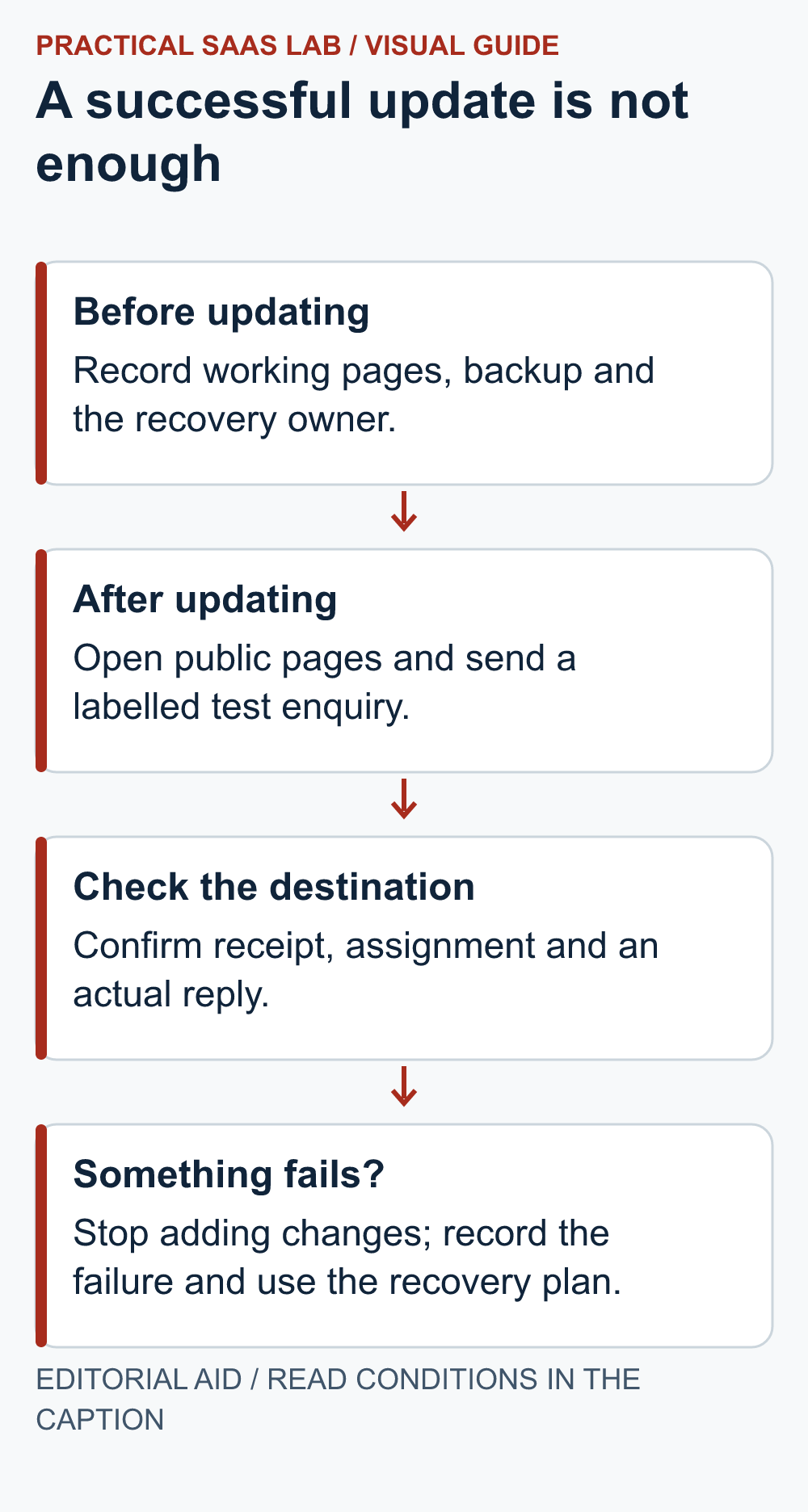
A success message on the website is only one checkpoint. Follow one labelled test from submission to reply:
- Identify it. Use a test name, a monitored test address and a unique reference, such as “QA-0930-A: website maintenance test—no quotation needed.” Keep real customer details out of the test.
- Submit once. Record the page, time and confirmation. If the screen hangs, check the destination before trying again; the first submission may already have arrived.
- Find the same reference. Check the intended inbox, spam handling and any connected CRM record. Confirm the details and assignment, not merely that an email exists somewhere.
- Complete the handoff. Ask the assigned person to reply to the test address and confirm receipt there. Mark the record as a test so it does not inflate the sales pipeline.
If delivery fails, work through the contact-form email checklist to separate submission, storage and delivery.
If you use a booking system, test its supported test mode or an agreed, reversible test appointment. Do not create real charges, reserve scarce appointments or trigger customer messages just to tick a box. Payment and booking workflows need their own controlled test plan.
For an email-only contact page, verify the displayed address and link, then send a test email to the business inbox. The absence of a form does not remove the need to check delivery.
Check as a visitor, including on a phone
Use a signed-out browser session as well as the administrator view. Where caching is enabled, follow the site’s cache-clearing procedure after the update. WordPress notes that cached content can leave visitors seeing the previous version.
Check the service heading, primary button, menu, form errors and any comparison table. A table can scroll inside its own container; the whole page should not require a sideways tour to find the submit button.
At Practical SaaS Lab, our article-editing work included checking a comparison table in a 320px preview and fixing a separate desktop layout problem. That observation supports checking more than one layout. It is not a completed plugin-update test or proof that every phone displays correctly. A narrow preview is useful; a real phone remains a separate check.
If something fails, stop adding changes
Record the failing URL, action, time, device and component just changed. Capture a redacted screenshot for the maintainer. Stop making unrelated plugin changes while the failure is being diagnosed.
Use the documented support or recovery path. Before restoring a database, account for enquiries, bookings or orders received since the backup. Ask the operator to protect those newer records. Use the table below to decide whether a customer journey is blocked or a readable cosmetic issue can be scheduled.
Decide what the failure prevents
These are suggested priorities for a service-business site. Judge the effect on a visitor, not how alarming the screenshot looks.
On a small screen, swipe the table sideways to see all columns.
| Observed problem | Immediate response | Evidence needed to close it |
|---|---|---|
| The enquiry cannot be submitted, received or assigned. | Keep maintenance open. Escalate to the maintainer and verify an alternative contact route. | A new labelled test reaches the owner and receives a reply. |
| The mobile menu or primary button cannot be used. | Treat the affected customer journey as broken, even if desktop works. | The same action passes on the affected device or browser. |
| An image caption wraps awkwardly, but remains readable. | Log the display issue with an owner and review date; verify it hides no necessary information. | The corrected layout is checked at the failing width. |
| A booking or payment result is uncertain. | Stop repeated tests. Have the responsible operator reconcile records before retrying. | The intended outcome is confirmed without duplicate bookings or charges. |
Example, not a reported incident: a mobile enquiry button sits under the menu overlay, while the desktop test passes. That is a failed mobile journey, not a harmless styling issue. Save the device and browser details, repair the obstruction, then repeat that exact route. “Desktop was fine” is useful evidence for diagnosis, not a substitute for the missing pass.
A maintenance record you can copy
Keep one short record for each update:
- Change and recovery: date, operator, versions, backup timestamp, location and restore owner.
- Public checks: tested URLs, device width, menu and service-page result.
- Enquiry proof: labelled test reference, destination receipt, reply and owner.
- Open issue: failing action, person responsible and next check date.
Mark a check as not run when it was skipped. Do not call the maintenance complete because the update button turned green.
Common questions
Should I disable automatic updates?
Not as a blanket response. WordPress supports automatic updates for plugins and themes, subject to the site’s configuration. Decide with your maintainer which components need closer supervision, who receives update notices and how failures are checked. Automation still needs recovery and verification.
Do I need to buy another maintenance tool?
Not necessarily. Start with the facilities your host and existing tools provide, then identify the actual gap. If nobody checks enquiries, buying another dashboard will not assign that job.
Useful detail: Use a post revision for content, not the whole update
WordPress’s default post-revision fields include the title, content and excerpt.
A revision can help compare a changed article, but it is not a complete checkpoint for plugin, theme or configuration changes. Put content comparison and site recovery into separate lines of the update record.
Try this:
- Capture the article’s pre-edit revision or approved copy.
- Use the revision comparison to inspect the intended content change.
- For the wider maintenance change, confirm the separate authorized backup-and-recovery checkpoint before proceeding.
Source: WordPress: default post revision fields. Checked October 3, 2026. The practical check is a PSL suggestion.
Sources and review date
- WordPress: Updating WordPress—backup and cache guidance.
- Learn WordPress: How to back up your site—backup methods and scope.
- WordPress: Plugin and theme auto-updates—configuration and recovery considerations.
Official guidance rechecked September 30, 2026. Hosting interfaces, plugin behavior and update requirements vary; use the instructions for your installation.
Next step: Save the four-field record with the next maintenance task. If backup ownership is unclear, use the hosting checklist; if the maintenance owner is undecided, compare Webflow and WordPress workload.