
Quick answer: Choose access from the person’s actual tasks, then test the permissions on your own site. Keep publishing approval and account recovery explicit. “Everyone is an administrator” is a convenient setup with an inconvenient future.
Jump to: Practical table · Checklist / record
For: owners of a self-hosted WordPress site who work with writers or contractors. Role descriptions are source-based; the review process is a suggested owner checklist.
Decision gate: Unexpected permissions need investigation before broader access is granted.
- Ask what the person needs to do
- Where to look in the Users screen
- Understand the default starting roles
- Distinguish access from an approval process
- Test an ordinary task and a boundary
- A worked example: an owner, a writer and a maintainer
- Plan the end before the first login
- Handle temporary work without permanent expansion
- An access review record
- Useful detail: Author is a publishing role, not a draft-only role
- Sources and editorial basis
Ask what the person needs to do
Start with a task list: draft articles, publish articles, update service pages, manage enquiries, or maintain plugins. Those are different jobs. “They help with the website” is not specific enough to choose an account role. An occasional writer should not receive every site control simply because setting up one account is faster.
Use a named account for each person and keep the business owner’s recovery arrangements separate from a contractor’s working account. This guide helps you plan and test access; it is not a security audit of your site. Ask your maintainer to review the actual installation where plugins, custom code or multisite change the permissions.
Where to look in the Users screen
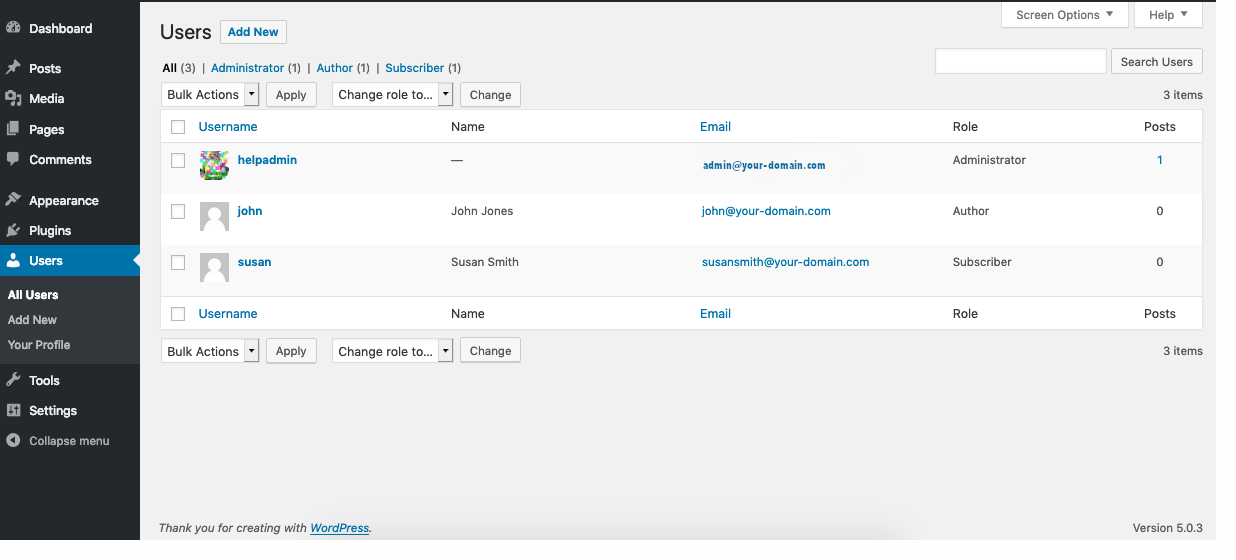
- Open Users: the left-hand menu identifies the user-management area.
- Read the Role column: it shows the assigned role for each account in this example.
- Compare the role with the job: use the table below, then test the actual permissions. Do not change roles merely to match this sample.
Understand the default starting roles
On a small screen, swipe the table sideways to see all columns.
| Work to perform | Default role to consider | Boundary to check |
|---|---|---|
| Draft own posts for review | Contributor | Cannot publish own posts by default. |
| Publish and manage own posts | Author | Not a general service-page or site-maintenance role. |
| Manage editorial content across authors | Editor | Broader content authority; review whether that is needed. |
| Maintain the site’s administrative settings | Administrator | Broad single-site control; reserve for a justified maintenance job. |
WordPress documents these default roles in its Roles and Capabilities guide. Roles consist of individual capabilities, and a site can change them. The label alone therefore does not prove the exact access on your installation. Multisite also has a network-level Super Admin role; do not treat it as a normal single-site publishing role.
Distinguish access from an approval process
Giving a role does not establish who checks facts, approves a price change or owns the final publication. Write that process separately. A person who can technically publish may still need business approval for a new offer. A person who drafts may need a reviewer who is available before the promised deadline.
Do not solve a missing review process by sharing the owner’s login. That makes it harder to tell who changed what and harder to end access cleanly. Equally, do not grant a broad role merely to make one blocked task disappear. Identify the exact task and ask whether the intended workflow or a narrower capability arrangement is more suitable.
Test an ordinary task and a boundary
Ask the authorised maintainer to prepare a test that does not affect live customers. Check two results with the intended user account:
- The task works. Open the appropriate content, edit a draft, add the needed material and submit it for the agreed review. Test publishing only where authorised and safe. Record the result, not just the menus that appeared.
- The boundary holds. Choose something outside this person’s job. Ask the maintainer to inspect the configured capabilities or demonstrate a safe test in a suitable environment. Do not make a destructive change simply to prove a button works.
Keep the review evidence limited to account name, role, task and result. Do not put passwords or recovery codes into the checklist. The person approving access should be able to understand the decision without receiving the credentials.
A worked example: an owner, a writer and a maintainer
Illustrative team: a consultant owns the business, a freelance writer drafts articles, and a maintainer handles technical updates. The writer’s immediate task is to prepare their own drafts for review. Contributor is a starting point to evaluate, with the required media workflow checked separately. Do not assume every drafting task is included.
The owner reviews claims and publishes through an appropriate account. The maintainer receives only the access justified by the maintenance assignment, with a named review or end date. If another person later takes over service-page editing, reassess that task rather than inheriting the previous contractor’s role by habit.
The plan passes when each person can complete their assigned work and the owner knows how access will end. It does not pass merely because all three can log in. Login is the front door; the useful question is which rooms the key opens.
Plan the end before the first login
Record who approved the account, why it exists, who owns any content it creates and when access should be reviewed. For a short project, tie that review to delivery rather than an unspecified future cleanup. For a continuing role, revisit access when responsibilities change.
Before removing access, identify scheduled posts, ownership of content, integrations and operational dependencies. Ask the maintainer how the site handles reassignment. Do not delete an account impulsively to “tidy up” without checking the content and recovery implications. Removal and deletion are not interchangeable decisions.
Verify the end of access
- Preserve the work. Identify content, scheduled posts and integrations, then confirm the supported reassignment route before destructive deletion.
- Close each access route. At the approved time, have the maintainer remove the intended WordPress access and separately review hosting, recovery, shared credentials and plugin accounts. Do not delay urgent revocation for an unfinished handover.
- Record both outcomes. Use authorised admin checks to confirm access removal, then ask the successor to complete an ordinary task. Do not sign in using the former user’s credentials.
Removing a WordPress user does not establish that every connected service has been reviewed. Use the SaaS offboarding checklist for the wider inventory and verification record.
Handle temporary work without permanent expansion
If a task genuinely needs wider access, document the task, authoriser, time window and rollback plan. Keep temporary work temporary. Once it is finished, verify the intended role again and check that the normal operator can continue. A handover that depends on a departed contractor’s personal account remains unfinished.
Stop and ask for technical help when the observed behaviour conflicts with the role description, when a plugin introduces its own permissions, or when you cannot confirm business ownership of the administrator account. Guessing is a poor substitute for knowing who controls the site.
An access review record
Person and business responsibility:
Account identifier, without credentials:
Tasks required:
Role and any custom capabilities:
Normal task tested and result:
Boundary checked and method:
Approval and recovery owner:
Review or end date:
Content and integration handover needed:
Access after the project:
Start with the next person who needs access. Define their actual work, test the smallest suitable arrangement with your maintainer, and keep the review record with the website handover notes. This is easier to maintain than an annual hunt for accounts nobody recognises.
Useful detail: Author is a publishing role, not a draft-only role
WordPress’s default Author role can publish and manage the author’s own posts; Contributor is the default draft-oriented starting role.
If a writer is meant to wait for approval, test that boundary in the installed site instead of relying on the word “Author.” Plugins and custom roles can change the result.
Try this:
- Use a disposable post in a test account with the proposed role.
- Check whether Publish, media upload and editing existing posts are available.
- Choose or configure the role through the authorized administrator, then repeat the task-and-boundary test.
Source: WordPress: default roles and capabilities. Checked October 3, 2026. The practical check is a PSL suggestion.
Sources and editorial basis
Default-role facts: WordPress Roles and Capabilities. Custom capabilities and plugins require site-specific verification. Reviewed September 29, 2026. The workflow and examples are editorial proposals, not measured customer results.
Keep going: Prepare the website handover · Check the site after updates